
1. ਉਤਪਾਦ ਖਤਮview
The QRD Wireless Controller (Model: US-T5-JB02) is a high-performance replacement controller designed for Nintendo Switch, Switch Pro, Lite, and OLED models. It features advanced technologies such as Hall Effect joysticks for precise, drift-free control, dual vibration motors for immersive feedback, and a 6-axis gyroscope for accurate motion sensing. This controller also includes programmable back buttons and customizable LED backlighting, enhancing your gaming experience.
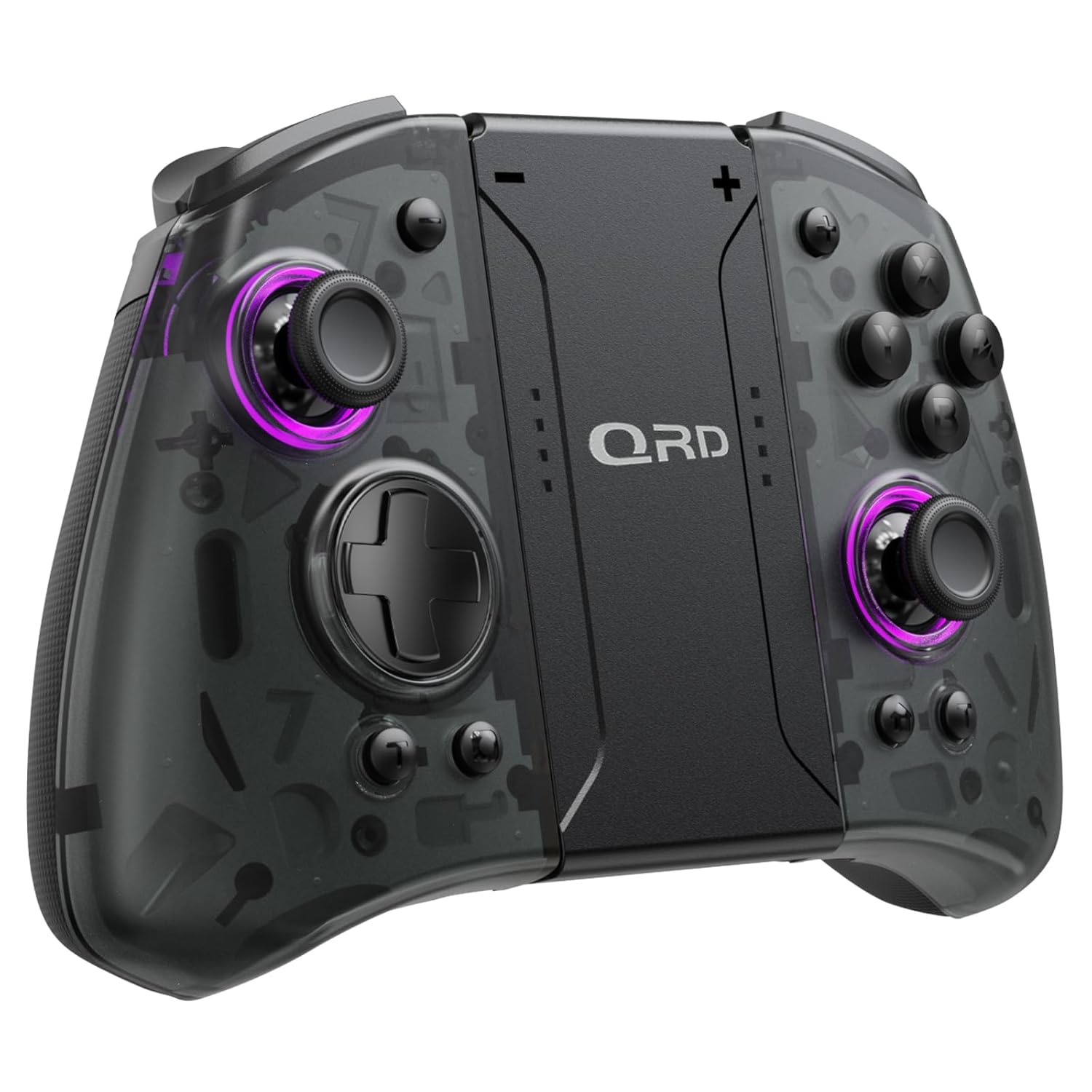
ਚਿੱਤਰ 1.1: ਸਾਹਮਣੇ view of the QRD Wireless Controller, showcasinਇਸਦਾ ਐਰਗੋਨੋਮਿਕ ਡਿਜ਼ਾਈਨ ਅਤੇ ਬਟਨ ਲੇਆਉਟ।
2 ਮੁੱਖ ਵਿਸ਼ੇਸ਼ਤਾਵਾਂ
- ਵਾਇਰਲੈੱਸ ਬਲੂਟੁੱਥ 5.3 ਕਨੈਕਟੀਵਿਟੀ: Ensures stable, lag-free connection for seamless gameplay.
- ਹਾਲ ਇਫੈਕਟ ਜੋਇਸਟਿਕਸ: Provides 360° precise, drift-free control and extended lifespan.
- ਦੋਹਰੀ ਵਾਈਬ੍ਰੇਸ਼ਨ ਮੋਟਰਾਂ: Offers 3 levels of adjustable vibration for enhanced tactile feedback.
- 6-ਐਕਸਿਸ ਜਾਇਰੋਸਕੋਪ ਮੋਸ਼ਨ ਸੈਂਸਿੰਗ: Enables accurate tilt detection for precise aiming and movement in compatible games.
- ਪ੍ਰੋਗਰਾਮੇਬਲ ਬੈਕ ਬਟਨ: Customize controls with single or multiple mappings for efficient combo execution.
- ਟਰਬੋ ਫੰਕਸ਼ਨ: Allows for rapid firing of buttons.
- LED ਬੈਕਲਿਟ: Features 8 different colors with static, breathing, and flashing modes for personalized aesthetics.
- ਲੰਬੀ ਬੈਟਰੀ ਲਾਈਫ: Up to 10 hours of uninterrupted gameplay on a single charge (2 hours charging time).
- ਐਰਗੋਨੋਮਿਕ ਡਿਜ਼ਾਈਨ: Comfortable grip for extended gaming sessions, includes a screenshot function.

Image 2.1: Diagram highlighting key features such as Bluetooth 5.3, Dual Vibration, 6-Axis Gyro, Turbo, Macro Back Paddles, and Colorful Options.

Image 2.2: Illustration demonstrating the Hall Effect Joysticks, emphasizing drift-free and accurate control.
3. ਸੈੱਟਅੱਪ ਅਤੇ ਕਨੈਕਸ਼ਨ
3.1 Initial Pairing with Nintendo Switch
- Ensure your Nintendo Switch console is powered on and updated to the latest system version.
- ਹੋਮ ਮੀਨੂ ਤੋਂ, "ਕੰਟਰੋਲਰ" > "ਗ੍ਰਿਪ/ਆਰਡਰ ਬਦਲੋ" ਚੁਣੋ।
- On the QRD Wireless Controller, press and hold the ਹੋਮ ਬਟਨ (usually located in the center) for 3-5 seconds until the LED indicators start flashing rapidly.
- Once the controller is successfully paired, the corresponding player LED(s) on the controller will light up solid.
- The controller can also be connected by sliding it into the Nintendo Switch Dock while the console is attached.
3.2 Reconnecting the Controller
To reconnect a previously paired controller, simply press the ਹੋਮ ਬਟਨ once. The controller will automatically attempt to connect to the last paired console.
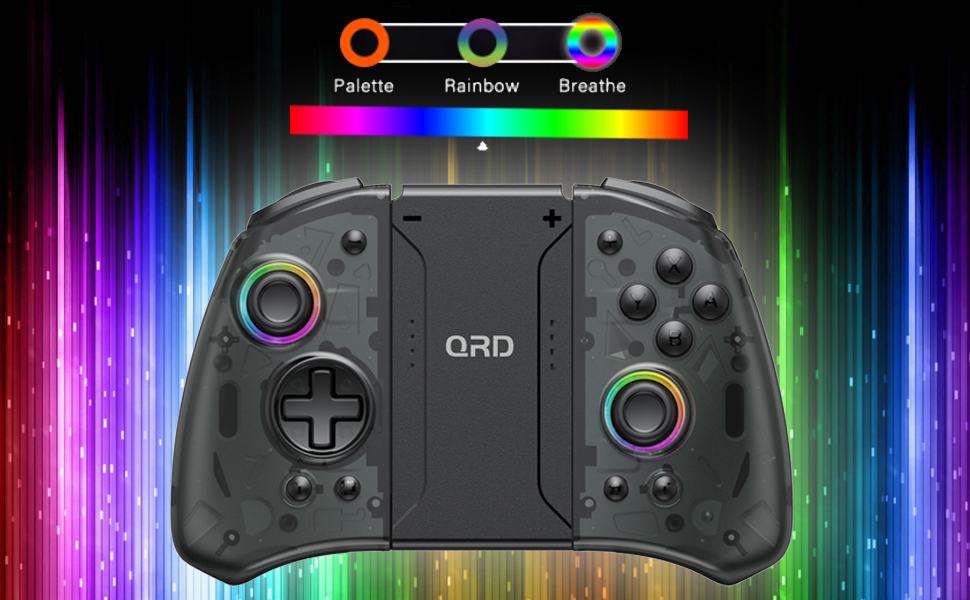
Image 3.1: Visual representation of controller compatibility with Nintendo Switch and Switch OLED models. Note: Not compatible with Switch Lite.
4. ਓਪਰੇਟਿੰਗ ਹਦਾਇਤਾਂ
4.1 ਬਟਨ ਲੇਆਉਟ
Familiarize yourself with the controller's button layout:
- ਖੱਬਾ ਜੋਇਸਟਿਕ: Movement control.
- ਸੱਜਾ ਜੋਇਸਟਿਕ: ਕੈਮਰਾ ਜਾਂ ਨਿਸ਼ਾਨਾ ਕੰਟਰੋਲ।
- ਡੀ-ਪੈਡ: ਦਿਸ਼ਾ-ਨਿਰਦੇਸ਼ ਇਨਪੁੱਟ।
- A/B/X/Y ਬਟਨ: ਐਕਸ਼ਨ ਬਟਨ।
- L/R ਬਟਨ: ਮੋਢੇ ਦੇ ਬਟਨ।
- ZL/ZR ਬਟਨ: ਟਰਿੱਗਰ ਬਟਨ।
- ਹੋਮ ਬਟਨ: Returns to the HOME Menu, powers on/off the controller.
- ਸਕ੍ਰੀਨਸ਼ਾਟ ਬਟਨ: ਸਕਰੀਨਸ਼ਾਟ ਕੈਪਚਰ ਕਰਦਾ ਹੈ।
- +/- ਬਟਨ: Plus and Minus buttons for in-game functions.
- M1/M2 (Back Buttons): Programmable macro buttons.
4.2 ਵਾਈਬ੍ਰੇਸ਼ਨ ਤੀਬਰਤਾ ਨੂੰ ਐਡਜਸਟ ਕਰਨਾ
The controller supports 3 levels of vibration intensity. To adjust, press and hold the ਟਰਬੋ ਬਟਨ ਅਤੇ ਫਿਰ ਦਬਾਓ ਡੀ-ਪੈਡ ਅੱਪ or ਡੀ-ਪੈਡ ਡਾਊਨ to cycle through intensity levels (Low, Medium, High, Off).
4.3 Turbo Function Setup
To set a button to Turbo mode:
- ਨੂੰ ਦਬਾ ਕੇ ਰੱਖੋ ਟਰਬੋ ਬਟਨ.
- While holding Turbo, press the desired action button (e.g., A, B, X, Y, L, R, ZL, ZR). The button will now continuously register input when held down.
- To clear Turbo for a specific button, repeat the process. To clear all Turbo settings, press and hold the ਟਰਬੋ ਬਟਨ 5 ਸਕਿੰਟ ਲਈ.
4.4 Programming Back Buttons (Macro)
The M1 and M2 back buttons can be programmed to execute a sequence of button presses (macro). Each macro can store up to 16 button presses.
- ਨੂੰ ਦਬਾ ਕੇ ਰੱਖੋ M1 or M2 ਬਟਨ ਜਿਸਨੂੰ ਤੁਸੀਂ ਪ੍ਰੋਗਰਾਮ ਕਰਨਾ ਚਾਹੁੰਦੇ ਹੋ।
- While holding the M button, press the SET ਬਟਨ (refer to manual diagram for location, typically a small button on the back). The indicator light will flash slowly.
- Enter the desired sequence of button presses (e.g., A, B, X, Y, D-Pad directions).
- ਦਬਾਓ SET ਬਟਨ again to save the macro. The indicator light will stop flashing.
- To clear a macro, press and hold the programmed M button and then press the SET ਬਟਨ ਦੋ ਵਾਰ
4.5 LED Backlight Adjustment
The controller features customizable RGB lighting. To cycle through modes and colors:
- ਦਬਾਓ LED ਬਟਨ (refer to manual diagram for location) to change between static color, breathing, and flashing modes.
- In static mode, press the LED ਬਟਨ repeatedly to cycle through the 8 available colors.

Image 4.1: Display of the controller's LED backlight options, including Palette (static colors), Rainbow, and Breathe modes.
5. ਚਾਰਜਿੰਗ ਅਤੇ ਬੈਟਰੀ ਲਾਈਫ਼
The QRD Wireless Controller is equipped with a built-in rechargeable Lithium Polymer battery. A 2.5m USB-C cable is included for charging.
- Connect the USB-C end of the cable to the controller's charging port and the USB-A end to a power source (e.g., Nintendo Switch Dock, USB wall adapter, computer USB port).
- ਚਾਰਜਿੰਗ ਨੂੰ ਪੂਰਾ ਚਾਰਜ ਕਰਨ ਵਿੱਚ ਲਗਭਗ 2 ਘੰਟੇ ਲੱਗਦੇ ਹਨ।
- A full charge provides up to 10 hours of continuous gameplay.
- The LED indicators on the controller will show charging status and battery level.
6. ਰੱਖ-ਰਖਾਅ
To ensure the longevity and optimal performance of your QRD Wireless Controller, follow these maintenance guidelines:
- ਸਫਾਈ: ਕੰਟਰੋਲਰ ਨੂੰ ਪੂੰਝਣ ਲਈ ਇੱਕ ਨਰਮ, ਸੁੱਕੇ ਕੱਪੜੇ ਦੀ ਵਰਤੋਂ ਕਰੋ। ਜ਼ਿੱਦੀ ਗੰਦਗੀ ਲਈ, ਥੋੜ੍ਹਾ ਜਿਹਾ ਡੀampਪਾਣੀ ਨਾਲ ਕੱਪੜਾ ਧੋਵੋ। ਕਠੋਰ ਰਸਾਇਣਾਂ, ਘੋਲਨ ਵਾਲਿਆਂ, ਜਾਂ ਘਸਾਉਣ ਵਾਲੇ ਕਲੀਨਰ ਦੀ ਵਰਤੋਂ ਕਰਨ ਤੋਂ ਬਚੋ।
- ਸਟੋਰੇਜ: ਕੰਟਰੋਲਰ ਨੂੰ ਸਿੱਧੀ ਧੁੱਪ, ਬਹੁਤ ਜ਼ਿਆਦਾ ਤਾਪਮਾਨ ਅਤੇ ਉੱਚ ਨਮੀ ਤੋਂ ਦੂਰ ਇੱਕ ਠੰਡੀ, ਸੁੱਕੀ ਜਗ੍ਹਾ 'ਤੇ ਸਟੋਰ ਕਰੋ।
- ਹੈਂਡਲਿੰਗ: Avoid dropping the controller or subjecting it to strong impacts. Do not disassemble the controller, as this may void the warranty and cause damage.
- ਚਾਰਜਿੰਗ: Do not leave the controller charging for excessively long periods after it is fully charged.
7. ਸਮੱਸਿਆ ਨਿਪਟਾਰਾ
| ਸਮੱਸਿਆ | ਸੰਭਵ ਕਾਰਨ | ਹੱਲ |
|---|---|---|
| ਕੰਟਰੋਲਰ ਕਨੈਕਟ ਨਹੀਂ ਹੁੰਦਾ। | ਘੱਟ ਬੈਟਰੀ; ਜੋੜਾਬੱਧ ਨਹੀਂ; ਦਖਲਅੰਦਾਜ਼ੀ। | Charge the controller; Re-pair the controller following Section 3.1; Move closer to the console or away from other wireless devices. |
| Input lag or disconnection during gameplay. | Wireless interference; Distance from console; Low battery. | Ensure no strong wireless signals are nearby; Reduce distance to console; Charge the controller. |
| Joysticks drift or are unresponsive. | Calibration issue; Physical debris. | Go to Switch System Settings > Controllers and Sensors > Calibrate Control Sticks. Clean around the joystick base. |
| ਬਟਨ ਗੈਰ-ਜਵਾਬਦੇਹ ਹਨ। | Stuck button; Software glitch. | Ensure buttons are not physically stuck. Try resetting the controller (if a reset button is present, otherwise power cycle). |
| ਵਾਈਬ੍ਰੇਸ਼ਨ ਕੰਮ ਨਹੀਂ ਕਰ ਰਹੀ। | Vibration setting off; Game does not support vibration. | Adjust vibration intensity (Section 4.2). Verify game compatibility. |
8 ਨਿਰਧਾਰਨ
| ਵਿਸ਼ੇਸ਼ਤਾ | ਵੇਰਵੇ |
|---|---|
| ਮਾਡਲ ਨੰਬਰ | US-T5-JB02 |
| ਕਨੈਕਟੀਵਿਟੀ | ਬਲੂਟੁੱਥ 5.3 |
| ਅਨੁਕੂਲਤਾ | Nintendo Switch, Switch Pro, Switch OLED |
| ਜੋਇਸਟਿਕ ਕਿਸਮ | ਹਾਲ ਪ੍ਰਭਾਵ |
| ਵਾਈਬ੍ਰੇਸ਼ਨ | Dual Motors, 3 adjustable levels |
| ਮੋਸ਼ਨ ਕੰਟਰੋਲ | 6-ਐਕਸਿਸ ਗਾਇਰੋਸਕੋਪ |
| ਪ੍ਰੋਗਰਾਮੇਬਲ ਬਟਨ | Yes (Back Buttons) |
| ਬੈਟਰੀ ਦੀ ਕਿਸਮ | ਲਿਥੀਅਮ ਪੋਲੀਮਰ |
| ਚਾਰਜ ਕਰਨ ਦਾ ਸਮਾਂ | ਲਗਭਗ. 2 ਘੰਟੇ |
| ਖੇਡਣ ਦਾ ਸਮਾਂ | 10 ਘੰਟੇ ਤੱਕ |
| ਚਾਰਜਿੰਗ ਪੋਰਟ | USB-C |
| ਮਾਪ | 7.95 x 5.51 x 2.36 ਇੰਚ (ਲਗਭਗ) |
| ਭਾਰ | 12.35 ਔਂਸ (ਲਗਭਗ) |
9. ਵਾਰੰਟੀ ਅਤੇ ਸਹਾਇਤਾ
9.1 ਵਾਰੰਟੀ ਜਾਣਕਾਰੀ
QRD products are manufactured with high-quality materials and undergo rigorous testing. This product comes with a standard manufacturer's warranty against defects in materials and workmanship. Please refer to the product packaging or the official QRD webਖਾਸ ਵਾਰੰਟੀ ਸ਼ਰਤਾਂ ਅਤੇ ਮਿਆਦ ਲਈ ਸਾਈਟ।
9.2 ਗਾਹਕ ਸਹਾਇਤਾ
For technical assistance, troubleshooting, or warranty claims, please contact QRD Customer Support. Have your product model number (US-T5-JB02) and purchase information ready when contacting support.
- Supportਨਲਾਈਨ ਸਹਾਇਤਾ: Visit the official QRD website for FAQs, updated manuals, and support contact forms.
- ਈਮੇਲ ਸਹਾਇਤਾ: [Insert QRD Support Email Address Here - if available, otherwise omit]
- ਫ਼ੋਨ ਸਹਾਇਤਾ: [Insert QRD Support Phone Number Here - if available, otherwise omit]
We are committed to providing excellent customer service and ensuring your satisfaction with QRD products.