
1. ਉਤਪਾਦ ਖਤਮview
The QRD Junior E5 Wireless Controller is a compact and versatile gaming controller designed for a wide range of platforms, including Nintendo Switch, Switch Lite, Switch OLED, PC (Windows), Mac, iOS, and Android devices. Its ergonomic design and advanced features provide an enhanced gaming experience.

ਚਿੱਤਰ 1.1: ਸਾਹਮਣੇ view of two QRD Junior E5 Wireless Controllers.

Image 1.2: Back and front views of the QRD Junior E5 Wireless Controller, highlighting its design.
2. ਪੈਕੇਜ ਸਮੱਗਰੀ
- QRD Junior E5 Wireless Controller (2 units for this package)
- USB-C ਚਾਰਜਿੰਗ ਕੇਬਲ
- ਉਪਭੋਗਤਾ ਮੈਨੁਅਲ (ਇਹ ਦਸਤਾਵੇਜ਼)
3. ਸੈੱਟਅੱਪ ਅਤੇ ਕਨੈਕਸ਼ਨ
3.1 ਕੰਟਰੋਲਰ ਨੂੰ ਚਾਰਜ ਕਰਨਾ
Before first use, fully charge the controller. Connect the provided USB-C cable to the controller's charging port and the other end to a USB power source (e.g., console, PC, or USB wall adapter). The indicator lights will show charging status and turn off when fully charged.
3.2 ਨਿਨਟੈਂਡੋ ਸਵਿੱਚ ਨਾਲ ਜੁੜਨਾ
- On the Nintendo Switch HOME Menu, select ਕੰਟਰੋਲਰ > ਪਕੜ/ਕ੍ਰਮ ਬਦਲੋ.
- ਨੂੰ ਦਬਾ ਕੇ ਰੱਖੋ ਹੋਮ ਬਟਨ on the QRD Junior E5 controller for 3-5 seconds until the indicator lights start flashing rapidly.
- ਇੱਕ ਵਾਰ ਕਨੈਕਟ ਹੋਣ ਤੋਂ ਬਾਅਦ, ਕੰਟਰੋਲਰ 'ਤੇ ਸੰਬੰਧਿਤ ਪਲੇਅਰ ਇੰਡੀਕੇਟਰ ਲਾਈਟ(ਸ) ਠੋਸ ਰਹਿਣਗੀਆਂ।
3.3 Connecting to PC (Windows/Mac)
The controller supports both wireless Bluetooth and wired USB-C connections for PC and Mac.
3.3.1 Wireless Bluetooth Connection
- Ensure your PC/Mac has Bluetooth enabled.
- On your PC/Mac, go to Bluetooth settings and search for new devices.
- ਨੂੰ ਦਬਾ ਕੇ ਰੱਖੋ ਹੋਮ ਬਟਨ on the QRD Junior E5 controller for 3-5 seconds until the indicator lights start flashing rapidly.
- Select "QRD Controller" or similar from the list of available devices to pair.
- The controller supports ਐਕਸ-ਇਨਪੁਟ for PC games.
3.3.2 ਵਾਇਰਡ USB-C ਕਨੈਕਸ਼ਨ
Connect the controller to your PC/Mac using the provided USB-C cable. The controller will be automatically recognized, and no driver installation is required.
3.4 iOS/Android ਡਿਵਾਈਸਾਂ ਨਾਲ ਕਨੈਕਟ ਕਰਨਾ
- Enable Bluetooth on your iOS/Android device.
- ਨੂੰ ਦਬਾ ਕੇ ਰੱਖੋ ਹੋਮ ਬਟਨ on the QRD Junior E5 controller for 3-5 seconds until the indicator lights start flashing rapidly.
- ਲਈ ਖੋਜ "QRD Controller" or similar in your device's Bluetooth settings and pair.
4. ਸੰਚਾਲਨ ਨਿਰਦੇਸ਼ ਅਤੇ ਵਿਸ਼ੇਸ਼ਤਾਵਾਂ
4.1 ਬੁਨਿਆਦੀ ਨਿਯੰਤਰਣ
The QRD Junior E5 controller features standard button layouts including A/B/X/Y buttons, D-pad, Left/Right joysticks, L/R/ZL/ZR triggers, Home button, and +/- buttons.
4.2 ਟਰਬੋ ਫੰਕਸ਼ਨ
The TURBO function allows for continuous or automatic rapid firing of buttons. This feature can be customized for different games and play styles.
- To set TURBO: Press and hold the desired action button (e.g., A) and then press the TURBO ਬਟਨ once. The button will now continuously fire when held.
- To set Auto-TURBO: Press and hold the desired action button and then press the TURBO ਬਟਨ a second time. The button will automatically fire without being held.
- To clear TURBO: Press and hold the desired action button and then press the TURBO ਬਟਨ ਤੀਜੀ ਵਾਰ.
- ਟਰਬੋ ਸਪੀਡ ਐਡਜਸਟ ਕਰਨਾ: ਦਬਾਓ TURBO ਬਟਨ ਅਤੇ Up/Down D-pad simultaneously to cycle through speeds: 8 times/sec, 15 times/sec, 25 times/sec.

Image 4.1: Illustration of the Turbo function for rapid actions in games.
4.3 6-Axis Gyro Motion Sensor
The controller is equipped with an advanced 6-axis gyro motion sensor, allowing for precise viewpoint and tilt operations in compatible games. Tilt, turn, and twist the controller to interact with game environments dynamically.

Image 4.2: Demonstrating the 6-Axis Gyro motion sensor capability.
4.4 ਐਡਜਸਟੇਬਲ ਵਾਈਬ੍ਰੇਸ਼ਨ ਫੀਡਬੈਕ
Dual vibration motors provide immersive haptic feedback. The vibration intensity can be adjusted to suit personal preference and game requirements.
- Vibration modes: 0% (no vibration), 30% (weak), 70% (medium), and 100% (strong).
- To adjust vibration: Press the ਵਾਈਬ੍ਰੇਸ਼ਨ ਬਟਨ (if present, or a combination like TURBO + Left/Right joystick click) to cycle through intensity levels. Refer to the quick start guide for specific button combinations.

Image 4.3: Visual representation of the adjustable vibration feature.
5. ਰੱਖ-ਰਖਾਅ ਅਤੇ ਦੇਖਭਾਲ
- ਕੰਟਰੋਲਰ ਨੂੰ ਸੁੱਕਾ ਰੱਖੋ ਅਤੇ ਬਹੁਤ ਜ਼ਿਆਦਾ ਤਾਪਮਾਨਾਂ ਤੋਂ ਦੂਰ ਰੱਖੋ।
- ਕੰਟਰੋਲਰ ਨੂੰ ਨਰਮ, ਸੁੱਕੇ ਕੱਪੜੇ ਨਾਲ ਸਾਫ਼ ਕਰੋ। ਕਠੋਰ ਰਸਾਇਣਾਂ ਜਾਂ ਘ੍ਰਿਣਾਯੋਗ ਸਮੱਗਰੀ ਦੀ ਵਰਤੋਂ ਨਾ ਕਰੋ।
- ਕੰਟਰੋਲਰ ਨੂੰ ਸੁੱਟਣ ਜਾਂ ਤੇਜ਼ ਪ੍ਰਭਾਵਾਂ ਦੇ ਅਧੀਨ ਕਰਨ ਤੋਂ ਬਚੋ।
- ਨੁਕਸਾਨ ਤੋਂ ਬਚਣ ਲਈ ਵਰਤੋਂ ਵਿੱਚ ਨਾ ਹੋਣ 'ਤੇ ਕੰਟਰੋਲਰ ਨੂੰ ਸੁਰੱਖਿਅਤ ਥਾਂ 'ਤੇ ਸਟੋਰ ਕਰੋ।
6. ਸਮੱਸਿਆ ਨਿਪਟਾਰਾ
6.1 ਕੰਟਰੋਲਰ ਕਨੈਕਟ ਨਹੀਂ ਹੋ ਰਿਹਾ
- ਯਕੀਨੀ ਬਣਾਓ ਕਿ ਕੰਟਰੋਲਰ ਪੂਰੀ ਤਰ੍ਹਾਂ ਚਾਰਜ ਹੈ।
- Verify Bluetooth is enabled on your device (Switch, PC, Mac, iOS, Android).
- Make sure the controller is in pairing mode (indicator lights flashing rapidly).
- ਕੰਟਰੋਲਰ ਅਤੇ ਜਿਸ ਡਿਵਾਈਸ ਨਾਲ ਤੁਸੀਂ ਕਨੈਕਟ ਕਰਨ ਦੀ ਕੋਸ਼ਿਸ਼ ਕਰ ਰਹੇ ਹੋ, ਦੋਵਾਂ ਨੂੰ ਰੀਸਟਾਰਟ ਕਰਨ ਦੀ ਕੋਸ਼ਿਸ਼ ਕਰੋ।
- If connecting to Switch, ensure you are on the "Change Grip/Order" screen.
- For PC/Mac, try a wired USB-C connection to rule out Bluetooth issues.
6.2 ਇਨਪੁਟ ਲੈਗ ਜਾਂ ਗੈਰ-ਜਵਾਬਦੇਹ ਬਟਨ
- Ensure the controller is within range of the connected device.
- ਹੋਰ ਵਾਇਰਲੈੱਸ ਡਿਵਾਈਸਾਂ ਤੋਂ ਦਖਲ ਦੀ ਜਾਂਚ ਕਰੋ।
- Confirm the controller is fully charged. Low battery can affect performance.
- Restart the controller and the game/device.
6.3 Vibration Not Working or Incorrect
- Check the vibration settings on the controller (refer to section 4.4) to ensure it's not set to 0%.
- ਪੁਸ਼ਟੀ ਕਰੋ ਕਿ ਤੁਸੀਂ ਜੋ ਗੇਮ ਖੇਡ ਰਹੇ ਹੋ ਉਹ ਵਾਈਬ੍ਰੇਸ਼ਨ ਫੀਡਬੈਕ ਦਾ ਸਮਰਥਨ ਕਰਦੀ ਹੈ।
- Ensure the controller's firmware is up to date (if applicable, check the manufacturer's webਸਾਈਟ).
7 ਨਿਰਧਾਰਨ
| ਮਾਡਲ | Junior E5 |
| ਬ੍ਰਾਂਡ | QRD |
| ਕਨੈਕਟੀਵਿਟੀ | ਵਾਇਰਲੈੱਸ ਬਲੂਟੁੱਥ, ਵਾਇਰਡ USB-C |
| ਅਨੁਕੂਲਤਾ | Nintendo Switch, Switch Lite, Switch OLED, PC (Windows), Mac, iOS, Android |
| ਇਨਪੁਟ ਮੋਡਸ | X-input (PC), Switch-input (Nintendo Switch) |
| ਵਿਸ਼ੇਸ਼ ਵਿਸ਼ੇਸ਼ਤਾਵਾਂ | 6-Axis Gyro Motion Sensor, Adjustable Vibration, TURBO Function |
| ਮਾਪ (ਲਗਭਗ) | 5 x 3.31 x 2.13 ਇੰਚ (12.7 x 8.4 x 5.4 ਸੈ.ਮੀ.) |
| ਭਾਰ (ਲਗਭਗ) | 1.06 ਪੌਂਡ (0.48 ਕਿਲੋਗ੍ਰਾਮ) |
| ਬੈਟਰੀ | 2 Nonstandard Battery batteries required (internal, rechargeable) |

Image 7.1: Physical dimensions of the QRD Junior E5 Wireless Controller.
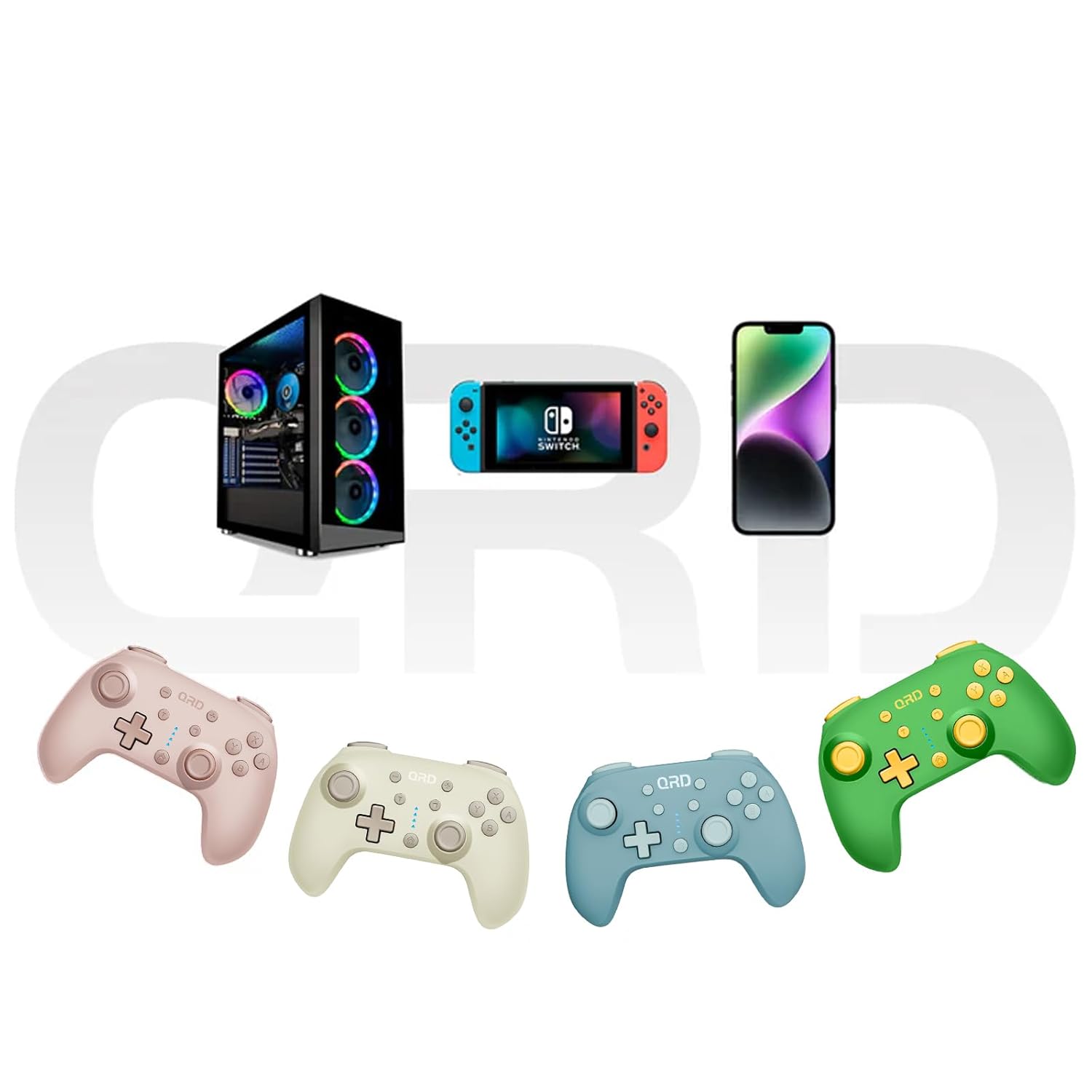
Image 7.2: Multi-platform compatibility of the QRD Junior E5 Wireless Controller.
8. ਵਾਰੰਟੀ ਅਤੇ ਸਹਾਇਤਾ
QRD products are designed for reliability and performance. For warranty information, technical support, or service inquiries, please refer to the contact information provided with your purchase or visit the official QRD webਸਾਈਟ। ਵਾਰੰਟੀ ਦਾਅਵਿਆਂ ਲਈ ਕਿਰਪਾ ਕਰਕੇ ਖਰੀਦ ਦਾ ਸਬੂਤ ਆਪਣੇ ਕੋਲ ਰੱਖੋ।
ਵਾਧੂ ਸਹਾਇਤਾ ਲਈ, ਤੁਸੀਂ ਇੱਥੇ ਜਾ ਸਕਦੇ ਹੋ QRD Store on Amazon.