
ਜਾਣ-ਪਛਾਣ
Welcome to the HP OmniDesk M03 AI Desktop PC. This manual provides essential information for setting up, operating, maintaining, and troubleshooting your new computer. The HP OmniDesk M03 is designed for performance and efficiency, featuring an Intel Core Ultra 7 265 processor with dedicated AI cores, 16GB DDR5 RAM, and a 2TB NVMe SSD, running on Windows 11 Home.
ਬਾਕਸ ਵਿੱਚ ਕੀ ਹੈ
ਪੁਸ਼ਟੀ ਕਰੋ ਕਿ ਸਾਰੇ ਹਿੱਸੇ ਪੈਕੇਜਿੰਗ ਵਿੱਚ ਮੌਜੂਦ ਹਨ:
- HP OmniDesk Desktop PC
- ਵਾਇਰਲੈੱਸ ਕੀਬੋਰਡ
- ਮਾਊਸ
- ਤੇਜ਼ ਸੈਟਅਪ ਗਾਈਡ
- ਪਾਵਰ ਕੇਬਲ

Image: The HP OmniDesk M03 desktop PC, wireless keyboard, mouse, and power cable, illustrating the contents of the product box.
ਸਥਾਪਨਾ ਕਰਨਾ
1. ਪੈਰੀਫਿਰਲਾਂ ਨੂੰ ਜੋੜਨਾ
Before powering on your PC, connect your monitor, keyboard, and mouse.
- ਮਾਨੀਟਰ: Connect your monitor to the PC using an HDMI or DisplayPort cable. The ports are located on the rear of the PC.
- ਕੀਬੋਰਡ ਅਤੇ ਮਾਊਸ: The included keyboard and mouse are wireless. Insert batteries (if not pre-installed) and connect their USB receiver to an available USB port on the PC.
- ਸ਼ਕਤੀ: Connect the power cable to the PC's power input on the rear and then to a wall outlet.
- ਨੈੱਟਵਰਕ (ਵਿਕਲਪਿਕ): For a wired internet connection, connect an Ethernet cable from your router to the RJ45 port on the rear of the PC.

Image: Rear panel of the HP OmniDesk M03, highlighting the DisplayPort, HDMI, USB, and Ethernet ports for connecting external devices.

ਚਿੱਤਰ: ਸਾਈਡ view of the HP OmniDesk M03 AI Desktop PC, showing its compact tower design.
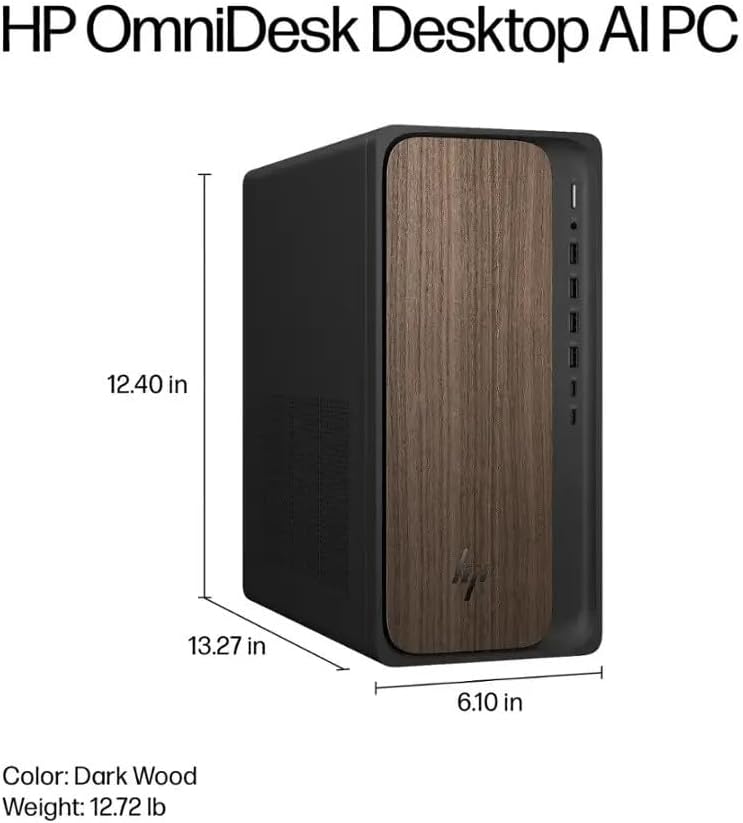
Image: Diagram illustrating the location and type of front and rear ports on the HP OmniDesk M03, including USB-A, USB-C, HDMI, DisplayPort, and audio jacks.
2. ਪਾਵਰ ਚਾਲੂ ਕਰਨਾ ਅਤੇ ਸ਼ੁਰੂਆਤੀ ਸੈੱਟਅੱਪ
Once all peripherals are connected:
- ਪੀਸੀ ਦੇ ਸਾਹਮਣੇ ਵਾਲੇ ਪਾਵਰ ਬਟਨ ਨੂੰ ਦਬਾਓ।
- Follow the on-screen instructions to complete the Windows 11 Home initial setup, including language selection, network connection (if not wired), account creation, and privacy settings.

ਚਿੱਤਰ: ਸਾਹਮਣੇ view of the HP OmniDesk M03, showing the power button at the top right and various USB ports below it.
ਤੁਹਾਡੇ ਪੀਸੀ ਨੂੰ ਚਲਾਉਣਾ
ਵਿੰਡੋਜ਼ 11 ਹੋਮ
Your HP OmniDesk M03 comes pre-installed with Windows 11 Home. Familiarize yourself with the operating system's interface, Start menu, and settings. Microsoft provides extensive online resources for Windows 11 usage.
AI ਵਿਸ਼ੇਸ਼ਤਾਵਾਂ
The Intel Core Ultra 7 265 processor includes dedicated AI cores and Intel AI Boost, enhancing performance for AI-driven applications and features within Windows 11, such as AI Copilot. These features can assist with tasks, content creation, and system optimization.
ਕਨੈਕਟੀਵਿਟੀ
- ਵਾਈ-ਫਾਈ 6 (802.11ax): Connect to wireless networks for internet access. Manage Wi-Fi settings through the Windows 11 network settings.
- ਬਲੂਟੁੱਥ 5.4: Pair wireless devices such as headphones, speakers, or additional input devices. Access Bluetooth settings via the Windows 11 settings menu.
- ਈਥਰਨੈੱਟ: For a stable, high-speed wired connection, ensure an Ethernet cable is connected to the RJ45 port.
ਰੱਖ-ਰਖਾਅ
Cleaning Your PC
- ਬਾਹਰੀ: ਇੱਕ ਨਰਮ, ਲਿੰਟ-ਮੁਕਤ ਕੱਪੜੇ ਦੀ ਵਰਤੋਂ ਕਰੋ dampened with water or a mild cleaning solution to wipe down the exterior. Avoid harsh chemicals.
- ਵੈਂਟਸ: ਸਹੀ ਹਵਾ ਦੇ ਪ੍ਰਵਾਹ ਨੂੰ ਯਕੀਨੀ ਬਣਾਉਣ ਅਤੇ ਓਵਰਹੀਟਿੰਗ ਨੂੰ ਰੋਕਣ ਲਈ ਸਮੇਂ-ਸਮੇਂ 'ਤੇ ਸੰਕੁਚਿਤ ਹਵਾ ਦੀ ਵਰਤੋਂ ਕਰਕੇ ਵੈਂਟੀਲੇਸ਼ਨ ਗਰਿੱਲਾਂ ਤੋਂ ਧੂੜ ਸਾਫ਼ ਕਰੋ।
- ਬੰਦਰਗਾਹਾਂ: ਬੰਦਰਗਾਹਾਂ ਨੂੰ ਧੂੜ ਅਤੇ ਮਲਬੇ ਤੋਂ ਮੁਕਤ ਰੱਖੋ।
ਸਾਫਟਵੇਅਰ ਅੱਪਡੇਟ
Regularly update Windows 11 and device drivers to ensure optimal performance, security, and compatibility. Access Windows Update through the Settings menu.
ਡਾਟਾ ਬੈਕਅੱਪ
ਡੇਟਾ ਦੇ ਨੁਕਸਾਨ ਨੂੰ ਰੋਕਣ ਲਈ ਆਪਣੇ ਮਹੱਤਵਪੂਰਨ ਡੇਟਾ ਦਾ ਨਿਯਮਿਤ ਤੌਰ 'ਤੇ ਕਿਸੇ ਬਾਹਰੀ ਡਰਾਈਵ ਜਾਂ ਕਲਾਉਡ ਸਟੋਰੇਜ ਵਿੱਚ ਬੈਕਅੱਪ ਲੈਣ ਦੀ ਸਿਫਾਰਸ਼ ਕੀਤੀ ਜਾਂਦੀ ਹੈ।
ਸਮੱਸਿਆ ਨਿਪਟਾਰਾ
ਇਹ ਭਾਗ ਉਹਨਾਂ ਆਮ ਸਮੱਸਿਆਵਾਂ ਨੂੰ ਸੰਬੋਧਿਤ ਕਰਦਾ ਹੈ ਜੋ ਤੁਹਾਨੂੰ ਆ ਸਕਦੀਆਂ ਹਨ।
- ਕੋਈ ਸ਼ਕਤੀ ਨਹੀਂ:
- ਯਕੀਨੀ ਬਣਾਓ ਕਿ ਪਾਵਰ ਕੇਬਲ ਪੀਸੀ ਅਤੇ ਵਾਲ ਆਊਟਲੈਟ ਦੋਵਾਂ ਨਾਲ ਸੁਰੱਖਿਅਤ ਢੰਗ ਨਾਲ ਜੁੜੀ ਹੋਈ ਹੈ।
- ਕਿਸੇ ਹੋਰ ਡਿਵਾਈਸ ਨੂੰ ਪਲੱਗ ਇਨ ਕਰਕੇ ਪੁਸ਼ਟੀ ਕਰੋ ਕਿ ਵਾਲ ਆਊਟਲੈੱਟ ਕੰਮ ਕਰ ਰਿਹਾ ਹੈ।
- ਕੋਈ ਡਿਸਪਲੇ ਨਹੀਂ:
- Check that the monitor is powered on and correctly connected to the PC via HDMI or DisplayPort.
- ਯਕੀਨੀ ਬਣਾਓ ਕਿ ਤੁਹਾਡੇ ਮਾਨੀਟਰ 'ਤੇ ਸਹੀ ਇਨਪੁੱਟ ਸਰੋਤ ਚੁਣਿਆ ਗਿਆ ਹੈ।
- ਕੋਈ ਇੰਟਰਨੈਟ ਕਨੈਕਸ਼ਨ ਨਹੀਂ:
- For Wi-Fi, check if the Wi-Fi adapter is enabled and if you are connected to the correct network with the right password.
- ਵਾਇਰਡ ਕਨੈਕਸ਼ਨ ਲਈ, ਯਕੀਨੀ ਬਣਾਓ ਕਿ ਈਥਰਨੈੱਟ ਕੇਬਲ ਸਹੀ ਢੰਗ ਨਾਲ ਜੁੜੀ ਹੋਈ ਹੈ ਅਤੇ ਤੁਹਾਡਾ ਰਾਊਟਰ ਕੰਮ ਕਰ ਰਿਹਾ ਹੈ।
- ਕੀਬੋਰਡ/ਮਾਊਸ ਜਵਾਬ ਨਹੀਂ ਦੇ ਰਿਹਾ:
- Check battery levels for wireless devices.
- Ensure the USB receiver is plugged into a functional USB port.
- ਪੀਸੀ ਨੂੰ ਮੁੜ ਚਾਲੂ ਕਰਨ ਦੀ ਕੋਸ਼ਿਸ਼ ਕਰੋ।
ਹੋਰ ਗੁੰਝਲਦਾਰ ਮੁੱਦਿਆਂ ਲਈ, HP ਸਹਾਇਤਾ ਵੇਖੋ। webਸਾਈਟ ਜਾਂ ਗਾਹਕ ਸੇਵਾ ਨਾਲ ਸੰਪਰਕ ਕਰੋ।
ਨਿਰਧਾਰਨ
Detailed technical specifications for the HP OmniDesk M03 AI Desktop PC:
| ਕੰਪੋਨੈਂਟ | ਨਿਰਧਾਰਨ |
| ਪ੍ਰੋਸੈਸਰ | Intel Core Ultra 7 265 (20-Core, up to 5.3 GHz, Intel AI Boost) |
| ਆਪਰੇਟਿੰਗ ਸਿਸਟਮ | ਵਿੰਡੋਜ਼ 11 ਹੋਮ (64-ਬਿੱਟ) |
| ਮੈਮੋਰੀ (RAM) | 16GB DDR5 5600 MHz |
| ਸਟੋਰੇਜ | 2TB PCIe NVMe M.2 SSD |
| ਗ੍ਰਾਫਿਕਸ | ਏਕੀਕ੍ਰਿਤ ਇੰਟੇਲ ਗ੍ਰਾਫਿਕਸ |
| ਵੀਡੀਓ ਆਉਟਪੁੱਟ | 1x HDMI 2.1, 1x ਡਿਸਪਲੇਅਪੋਰਟ 1.4a |
| USB ਪੋਰਟ (ਸਾਹਮਣੇ) | 2x USB-A 5Gbps, 2x USB-A 10Gbps, 1x USB-C 5Gbps, 1x USB-C 10Gbps |
| USB ਪੋਰਟ (ਪਿਛਲੇ) | 4x USB 2.0 ਟਾਈਪ-ਏ |
| ਆਡੀਓ ਪੋਰਟ | 1x Headphone/Microphone Combo, 1x Line Input, 1x Line Output |
| ਨੈੱਟਵਰਕ | Wi-Fi 6 (802.11ax), Bluetooth 5.4, Gigabit Ethernet (RJ45) |
| ਮਾਪ (H x W x D) | 13.3" x 6.1" x 12.4" (33.8 ਸੈਂਟੀਮੀਟਰ x 15.5 ਸੈਂਟੀਮੀਟਰ x 31.5 ਸੈਂਟੀਮੀਟਰ) |
| ਭਾਰ | 11.77 ਪੌਂਡ (5.34 ਕਿਲੋਗ੍ਰਾਮ) |

Image: Diagram showing the height (13.27 inches), width (6.10 inches), and depth (12.40 inches) of the HP OmniDesk M03 desktop PC.
ਵਾਰੰਟੀ ਅਤੇ ਸਹਾਇਤਾ
ਵਾਰੰਟੀ ਜਾਣਕਾਰੀ
Your HP OmniDesk M03 AI Desktop PC comes with a 90-ਦਿਨ ਸੀਮਤ ਵਾਰੰਟੀ. This warranty covers defects in materials and workmanship under normal use. For detailed terms and conditions, please refer to the warranty documentation included with your product or visit the official HP support webਸਾਈਟ.
ਗਾਹਕ ਸਹਾਇਤਾ
For technical assistance, troubleshooting, or warranty claims, please contact HP Customer Support:
- Supportਨਲਾਈਨ ਸਹਾਇਤਾ: ਅਧਿਕਾਰੀ ਨੂੰ ਮਿਲਣ HP ਸਹਾਇਤਾ Webਸਾਈਟ ਡਰਾਈਵਰਾਂ, ਮੈਨੂਅਲ, ਅਤੇ ਸਮੱਸਿਆ ਨਿਪਟਾਰਾ ਗਾਈਡਾਂ ਲਈ।
- ਫ਼ੋਨ ਸਹਾਇਤਾ: Refer to the Quick Setup Guide or HP's webਖੇਤਰੀ ਸੰਪਰਕ ਨੰਬਰਾਂ ਲਈ ਸਾਈਟ।
When contacting support, please have your product model (M03) and serial number ready.